Basic Git and GitHub Guide
Table of Contents
- Create a local git repository
- Add a new file to the repo
- Add a file to the staging environment
- Create a commit
- Create a new branch
- Create a new repository on GitHub
- Push a branch GitHub
- Create a pull request
- Merge a PR
- Get changes on GitHub back to your computer
- Bask in your git glory

📘 Git and GitHub A quick aside: git and GitHub are not the same things. Git is an open-source, version control tool created in 2005 by developers working on the Linux OS; GitHub is a company founded in 2008 that makes tools which integrate with git. You do not need GitHub to use git, but you cannot use GitHub without using git. There are many other alternatives to GitHub, such as GitLab, BitBucket,… You do not need to use a remote to use git, but it will make sharing your code with others easier.
Step 1: Create a local git repository
When creating new project on your local machine using git, you’ll first create a new repositori (repo). To begin, open up a terminal and move to where you want to place the project on you local machine. Then, run init command:
name@ubuntu:~$ cd myproject/
name@ubuntu:~$ git init
Step 2: Add a new file to the repository
Go ahead and add some files in the folder. Once you have added or modified files in a folder containing a git repoo, git will notice that the file exists inside the repo. But, git won’t track the file unless you explicitly tell it to. Git only saves/manages changes to files that it tracks, so we will need to send a command to confirm that yes, want git to track our new file.
name@ubuntu:~$ touch file01.txt
You can git status command to see which files git knows exist
name@ubuntu:~$ git status
An interlude: the staging environment, the commit, and you
One of the most confusing parts when you’re first learning git is the concept of the stagin environment and how it relates to a commit.
A commit is a record of what changes you have made since the last time you made a commit. Commits make up the essence of your project and allow you to jump to the state of a project at any other commit. So, how do you tell git which files to put into a commit? This is where the staging environment or index come in. In Step 2, when you make changes to your repo, git notices that a file has changed but won’t do anything with it.
To add a file to a commit, you first need to add it to the staging environment. To do this, you can use the git add < filename > command. One you’ve used git add command to add all the files you want to the staging environment, you can then tell git to package them into a commit using the git commit command.
Step 3: Add a file to the staging environment
Add a file to the staging environment using the git add command. if you rerun the git status command you will see that git has added the file to the staging environment.
Below is add a specific file.
name@ubuntu:~$ git add file01.txt
or git add . to add all your files to the staging environment.
name@ubuntu:~$ git add .
Step 4: Create a commit
Run the command git commit -m “your message”. The message at the end of the commit should be something related to what the commit contains - maybe it’s a new feature, maybe it’s a bug fix, maybe it’s just fixing a typo. Commits live forever in a repository (technically you can delete them if you really, really need to but it’s messy), so if you leave a clear explanation of your changes it can be extremely helpful for future programmers (perhaps future you!) who are trying to figure out why some change was made years later.
name@ubuntu:~$ git commit -m "my first commit"
Step 5: Create a new branch
Say you want to make a new feature but are worried about making changes to the main project while developing the feature. This is where git branches come in.
Branches allow you to move back and forth between ‘states’ of a project. For instance, if you want to add a new page to your website you can create a new branch just for that page without affecting the main part of the project. Once you’re done with the page, you can merge your changes from your branch into the primary branch. When you create a new branch, Git keeps track of which commit your branch ‘branched’ off of, so it knows the history behind all the files.
Let’s say you are on the primary branch and want to create a new branch to develop your web page. Here’s what you’ll do: Run git checkout -b < my branch name >. This command will automatically create a new branch and then ‘check you out’ on it, meaning git will move you to that branch, off of the primary branch.
name@ubuntu:~$ git checkout -b testbranch
After running the above command, you can use the git branch command to confirm that your branch was created. The branch name with the asterisk next to it indicates which branch you’re on at that given time.
name@ubuntu:~$ git branch
A note on branch names
By default, every git repository’s first branch is named master (and is typically used as the primary branch in the project). As part of the tech industry’s general anti-racism work, some groups have begun to use alternate names for the default branch (we are using “primary” in this tutorial, for example). In other documentation and discussions, you may see “master”, or other terms, used to refer to the primary branch. Regardless of the name, just keep in mind that nearly every repository has a primary branch that can be thought of as the official version of the repository. If it’s a website, then the primary branch is the version that users see. If it’s an application, then the primary branch is the version that users download. This isn’t technically necessary (git doesn’t treat any branches differently from other branches), but it’s how git is traditionally used in a project.
Now, if you switch back to the primary branch and make some more commits, your new branch won’t see any of those changes until you merge those changes onto your new branch.
Step 6: Create a new repository on GitHub
If you only want to keep track of your code locally, you don’t need to use GitHub. But if you want to work with a team, you can use GitHub to collaboratively modify the project’s code.
To create a new repo on GitHub, log in and go to the GitHub home page. You can find the “New repository” option under the “+” sign next to your profile picture, in the top right corner of the navbar:
 After clicking the button, GitHub will ask you to name your repo and provide a brief description. When you’re done filling out the information, press the ‘Create repository’ button to make your new repo.
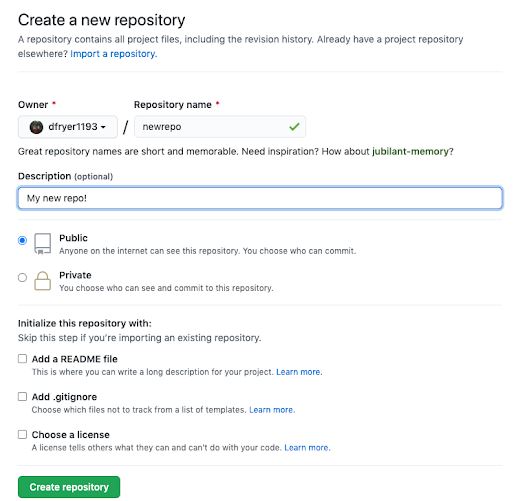
GitHub will ask if you want to create a new repo from scratch or if you want to add a repo you have created locally. In this case, since we’ve already created a new repo locally, we want to push that onto GitHub so follow the ‘….or push an existing repository from the command line’ section:
name@ubuntu:~$ git remote add origin https://github.com/<username>/<yourreponame>.git
Step 7: Push a branch to GitHub
Now we’ll push the commit in your branch to your new GitHub repo. This allows other people to see the changes you’ve made. If they’re approved by the repository’s owner, the changes can then be merged into the primary branch.
To push changes onto a new branch on GitHub, you’ll want to run git push origin yourbranchname. GitHub will automatically create the branch for you on the remote repository:
name@ubuntu:~$ git push origin <your-branch-name>
You might be wondering what that “origin” word means in the command above. What happens is that when you clone a remote repository to your local machine, git creates an alias for you. In nearly all cases this alias is called “origin.” It’s essentially shorthand for the remote repository’s URL. So, to push your changes to the remote repository, you could’ve used either the command: git push git@github.com:git/git.git yourbranchname or git push origin yourbranchname
(If this is your first time using GitHub locally, it might prompt you to log in with your GitHub username and password.)
Step 8: Create a pull request
A pull request (or PR) is a way to alert a repo’s owners that you want to make some changes to their code. It allows them to review the code and make sure it looks good before putting your changes on the primary branch.
This is what the PR page looks like before you’ve submitted it:
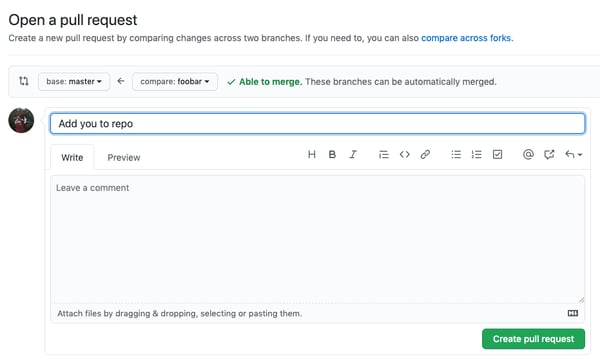
And this is what it looks like once you’ve submitted the PR request:
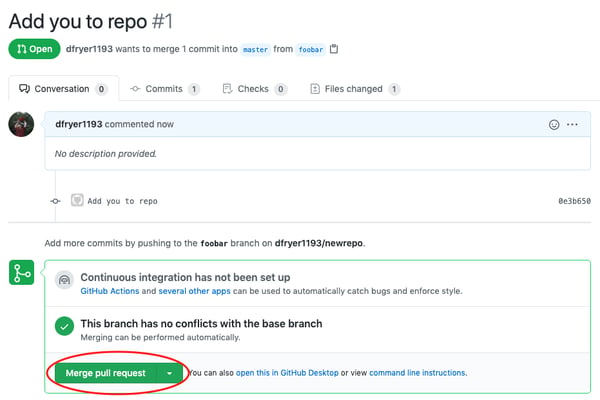
You might see a big green button at the bottom that says ‘Merge pull request’. Clicking this means you’ll merge your changes into the primary branch..
Sometimes you’ll be a co-owner or the sole owner of a repo, in which case you may not need to create a PR to merge your changes. However, it’s still a good idea to make one so you can keep a more complete history of your updates and to make sure you always create a new branch when making changes.
Step 9: Merge a PR
Go ahead and click the green ‘Merge pull request’ button. This will merge your changes into the primary branch.
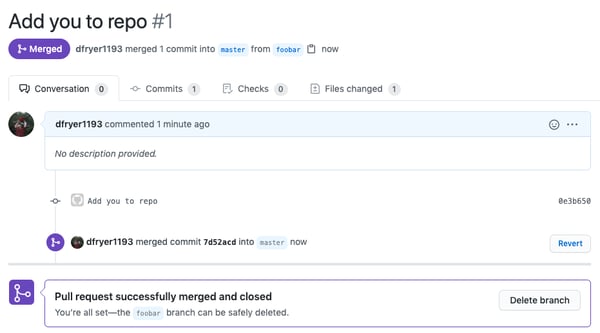
When you’re done, I recommend deleting your branch (too many branches can become messy), so hit that grey ‘Delete branch’ button as well.
You can double check that your commits were merged by clicking on the ‘Commits’ link on the first page of your new repo.
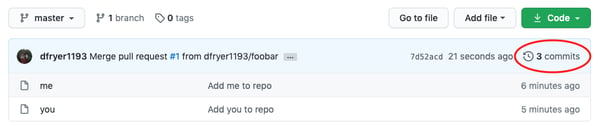
This will show you a list of all the commits in that branch. You can see the one I just merged right up top (Merge pull request #1).
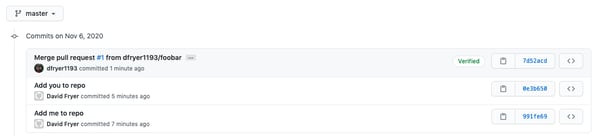
You can also see the hash code of the commit on the right hand side. A hash code is a unique identifier for that specific commit. It is useful for referring to specific commits and when undoing changes (use the git revert
< hash code number > command to backtrack).
Step 10: Get changes on GitHub back to your computer
Right now, the repo on GitHub looks a little different than what you have on your local machine. For example, the commit you made in your branch and merged into the primary branch doesn’t exist in the primary branch on your local machine.
In order to get the most recent changes that you or others have merged on GitHub, use the git pull origin master command (when working on the primary branch). In most cases, this can be shortened to “git pull”.
name@ubuntu:~$ git pull origin master
This shows you all the files that have changed and how they’ve changed.
Now we can use the git log command again to see all new commits.
(You may need to switch branches back to the primary branch. You can do that using the git checkout master command.)
Step 11: Bask in your git glory
You’ve successfully made a PR and merged your code to the primary branch. Congratulations! If you’d like to dive deeper, check out these more advanced tutorials and resources:
Reference: An Intro to Git and GitHub for Beginners (Tutorial) by HubSpot Product Team on DEC 3, 2020
Disclaimer: This content is for educational intention only.